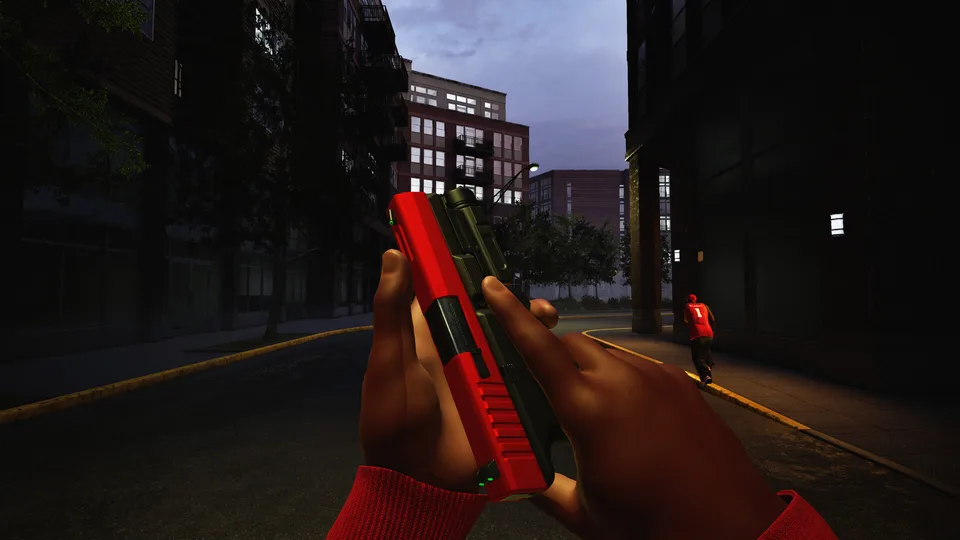
Hood Warfare 2 Guide: Best Settings, Progression & Mode Strategies
Master Hood Warfare 2 with our comprehensive guide covering optimal PC and controller settings, the three progression tracks, and tactical map strategies.
Published: Hood Warfare 2 Wiki Editorial Team
Table of Contents
Getting Started With Hood Warfare 2 Settings
When diving into Hood Warfare 2, optimizing your controls and graphics can drastically improve your performance. Because the title is built on Unreal Engine 5, asset loads can be quite heavy on your system, making it essential to tune your setup properly before jumping into multiplayer matches.
For mouse and keyboard users, community reports suggest keeping your base mouse sensitivity around 22 to 25, while lowering your zoom (ADS) sensitivity to about 13 to prevent over-flicking. If you prefer using a controller, community testing recommends setting your base sensitivity between 19 and 22, and dropping ADS down to 12 to 14. This keeps your aim steady and prevents your camera from swinging wildly, a common hurdle in Unreal Engine 5 shooters. Additionally, consider mapping crouch and reload to extra mouse buttons if available, as recommended by experienced players.
Set your in-game frame rate to match your monitor's refresh rate to maintain smoothness.
Turn off resource-heavy settings like HDR, Vsync, and motion blur to stabilize your frame rates.
Keep your resolution scale strictly at 100% for optimal visual clarity.
Adjust your field of view (FOV) between 90 and 105 depending on your personal preference for first-person and third-person perspectives.
Set foliage and view distance to ultra if you want to easily spot hiding enemies, while lowering shadows, shading, and reflections to medium or low if you need an FPS boost on mid-range hardware.
Understanding the Three Progression Tracks
One of the most common pitfalls for beginners is treating all in-game rewards as a single pool. According to veteran player guides, Hood Warfare 2 actually runs three separate progression tracks simultaneously, and understanding how they interact will save you hours of wasted grinding.
Your general reputation and overall account level govern broader unlocks, giving you access to new weapons and tactical equipment. Meanwhile, completing specific weapon challenges unlocks functional attachments for that individual firearm. Finally, earning kills with a specific gun advances its cosmetic skin collection.
Reputation & Level
Raises your overall profile rank to unlock new base weapons and equipment options for your loadout.
Weapon Challenges
Requires specific actions with a chosen gun to unlock critical performance-enhancing attachments.
Gun Kills
Accumulates straight eliminations with a specific firearm to unlock and advance cosmetic weapon skins.
To progress efficiently, you should avoid constantly switching weapons every time you die. Sticking with one main gun allows you to clear weapon challenges and unlock attachments naturally while your overall match performance contributes to your wider account reputation.
Mode-Specific Strategies and Kill Value
A major beginner trap in Hood Warfare 2 is assuming that securing a kill automatically fulfills the objective. While straight eliminations are crucial in deathmatch-style environments like GangBang and Chaos, other modes require you to convert kills into strategic advantages.
In Turf War, taking down an enemy only matters if it creates the space necessary to capture or defend territory. Similarly, in Chain Snatch, you must evaluate engagements as a combination of a kill plus a retrieval plan. If you eliminate an opponent across an open, exposed lane without a safe path to collect the dropped chain, your mechanical win results in zero score for your team.
Turf War: Focus fights around controlling territory boundaries rather than chasing distant kills.
Chain Snatch: Plan your pickup route before taking the shot so teammates can safely secure dropped chains.
Hit A Lick: Protect your bag carrier by letting non-carrying teammates scout corners and clear pursuit paths ahead of time.
Destroy The Block: Treat this one-life mode with extreme caution, prioritizing survival and bomb plant positioning over aggressive gunfights.
Mastering Maps and Custom Bot Practice
Hood Warfare 2 launched with four core maps: Downtown, Suburbs, The Trenches, and Chicago Mall. Instead of trying to memorize every single room and corner simultaneously, community guides recommend breaking each map down into three fundamental routes for every mode you play.
Learn how to safely approach the objective from your spawn, identify alternative pressure routes when your primary path is locked down, and map out a reliable exit route for after you secure an objective or grab a bag.
If you want to refine these routes without the chaotic variables of public multiplayer, you can utilize custom matches against bots. Bot matches let you lock down specific maps, modes, and settings. According to community feedback, this is the ideal environment to test newly unlocked weapon attachments, learn spawn layouts on tricky maps like Chicago Mall, and practice your positioning without hurting your live match statistics. Always verify post-match screens to check how bot performance affects your specific progression goals.
Fine-Tuning Your Loadout and Equipment
Weapon customization in Hood Warfare 2 should always be driven by problem-solving rather than blindly filling every attachment slot. If you find yourself losing gunfights because you cannot clearly acquire targets, experiment with optic attachments. If you frequently run out of ammunition during extended firefights near contested objectives, prioritize extended magazines.
Furthermore, do not hoard your equipment until it is too late. Whether you are running perks, tactical gear, or calling in support options like a UAV-style scanner or a drive-by extraction, deploy your resources where the match is actually decided. Use your equipment to break a stalemated Turf area, shield a bag carrier, or support a final push rather than wasting items on isolated skirmishes that hold no objective value.
Frequently Asked Questions
Is Hood Warfare 2 available on PC?
Yes, the game is available on PC via Steam. You can check current pricing, updates, and community reviews directly on the Hood Warfare 2 Steam Store Page.
Should I use a controller or keyboard and mouse?
Both input methods are fully supported, but because the game runs on Unreal Engine 5, sensitivities can feel quite high out of the box. Keyboard and mouse players benefit from precise aim adjustments and custom keybindings for reloading and crouching, while controller players should lower their ADS sensitivity to maintain stability during intense gunfights.
Do bot matches count toward weapon progression?
While bot matches provide a fantastic, low-pressure environment to test map routes and attachments, you should always check the post-match summary screen to confirm whether challenge progress, reputation gains, or skin unlocks are actively updating during offline play.