Hood Warfare 2 Controller Support Guide: Setup and Compatibility
Discover everything you need to know about Hood Warfare 2 controller support on Steam, including official input options, hardware compatibility, and gameplay setup.
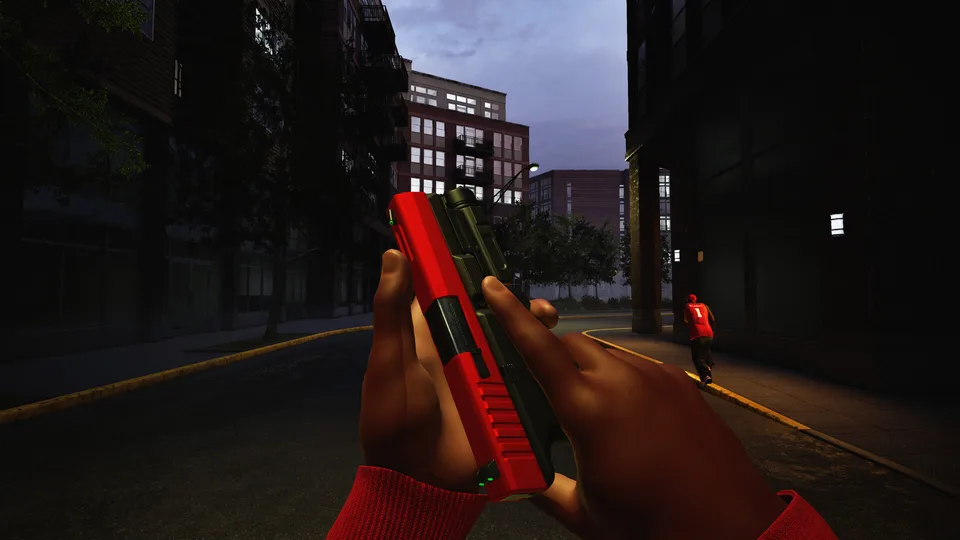
When diving into a fast-paced multiplayer tactical shooter like Hood Warfare 2, choosing your preferred control scheme can make or break your performance. Developed by Trapstar Games and built using Unreal Engine 5, the game offers native support for various hardware configurations. For players wondering about input options, the game officially features Full Controller Support on Steam, with specialized optimization designated for Xbox Controllers.
Whether you prefer kicking back with a gamepad or fine-tuning your aiming precision, setting up your hardware correctly is essential. Because the title includes intense online PvP action modes—ranging from Turf War and GangBang to Chaos and Hit A Lick—having a responsive, well-configured control setup ensures you won't struggle against opposing players in the streets of Chicago.
How to Verify and Configure Your Controller on Steam
Open the Steam client and navigate to your Library.
Right-click on Hood Warfare 2 and select Properties.
Go to the Controller tab on the left-hand menu.
Ensure that Steam Input is enabled for your specific gamepad, or set it according to your hardware preferences (especially if you are using an Xbox controller or alternative compatible gamepads).
Launch the game and check the in-memory settings menu to map or adjust sensitivities to your liking.
Hardware Requirements and Performance Considerations
Before you hook up your favorite controller and queue into a match, it is crucial to ensure your PC rig meets the system requirements demanded by the Unreal Engine 5 engine. According to community reports and official platform data, the game features robust graphical fidelity, weapon customisation, and chaotic multiplayer lobbies that require adequate hardware resources.
Meeting these recommended specifications ensures that your frame rates remain stable, which is particularly vital when utilizing analog sticks for tracking fast-moving targets in intense PvP firefights.
Tips for Optimizing Your Gamepad Setup
Playing an FPS with a controller requires balancing sensitivity settings to achieve quick turns without sacrificing long-range accuracy. Since Hood Warfare 2 features deep weapon customization—allowing you to swap out sights, grips, magazines, and suppressors—your weapon's handling will shift based on your loadout.
Adjust Deadzones: If your view drifts automatically, calibrate your controller deadzones through Steam's general controller settings.
Test in Bot Matches: Before jumping straight into live online lobbies, set up a custom match against bots to test your controller sensitivity and weapon recoil management.
Utilize Audio Cues: Take advantage of the recently added voice chat system (introduced in Patch 1.0.10) to coordinate with your team while keeping your hands locked onto your controller layout.
Troubleshooting Common Controller Issues
If your controller isn't responding properly when launching the game through Steam, consider the following troubleshooting steps derived from player experiences and technical guidelines:
Warning
Avoid running third-party wrapper software simultaneously with Steam Input unless absolutely necessary, as conflicting hook layers can cause gamepads to drop inputs or fail to register entirely.
If issues persist, try restarting the Steam client in Big Picture mode to force a refresh of the controller profile bindings. Always ensure your hardware drivers are up to date, especially when utilizing specialized controllers or wireless adapters on Windows 10/11 operating systems.
For further updates, community discussions, and direct purchase options, you can check out the official Hood Warfare 2 Steam Store Page.