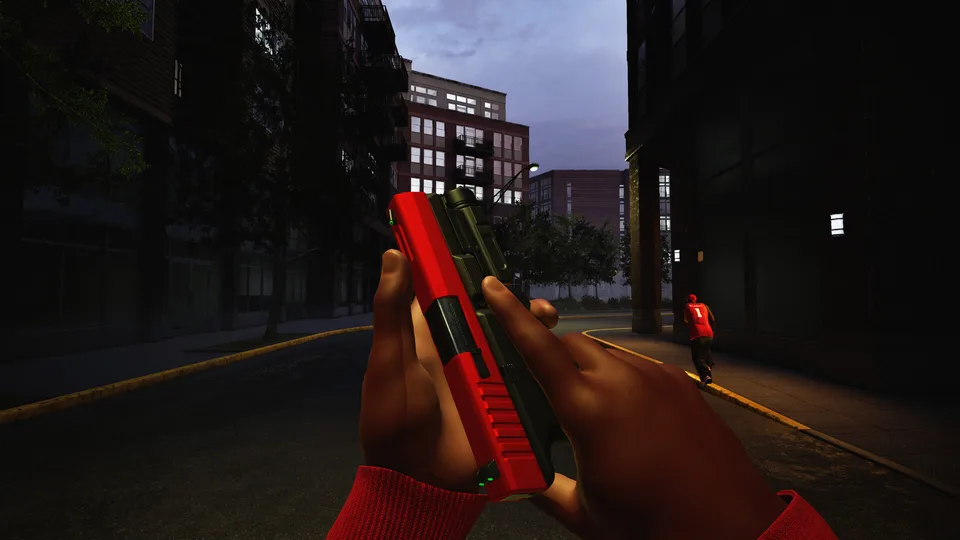
Hood Warfare 2 How to Invite Friends and Play Private Matches
Learn how to invite friends in Hood Warfare 2, set up private password-only lobbies, and resolve common online multiplayer issues following recent updates.
Published: Hood Warfare 2 Wiki Editorial Team
Table of Contents
Setting Up Private Matches and Inviting Friends
If you are trying to figure out how to invite friends in Hood Warfare 2, recent updates have streamlined the process significantly. When the chaotic multiplayer FPS first launched on Steam by developer Trapstar Games, players often had to rely on random matchmaking queues. However, community feedback and developer updates have since introduced dedicated private match functionality to help players group up directly.
To play with your friends without interference from random public queue participants, you will want to head into the game's lobby creation options. According to community reports and official patch notes, the process relies on setting up customized rooms.
Launch Hood Warfare 2 and ensure you are connected to the latest game version (check the bottom right corner of the menu for version indicators like 1.0.1.4).
Navigate to the online multiplayer menu and look for the option to create a Private Match.
Set up a secure password for your lobby so only the friends you share it with can join.
Share the lobby details and password with your squad members so they can search for and enter your private room.
If you encounter issues while trying to connect or invite your friends, community discussions emphasize checking your game version. If your client is outdated, you may need to fully exit Steam by clicking the top-left menu and selecting "Exit Steam" to force the latest patch to download.
Managing Voice Chat and Lobby Communication
Once you successfully get your friends into a lobby or private match, coordinating your tactics becomes essential in a fast-paced environment like Hood Warfare 2. The developers implemented robust voice chat features shortly after launch, allowing players to communicate seamlessly during matches.
By default, voice chat is configured with push-to-talk settings. According to the game's configuration notes, you can press the T key to speak to your team or the entire lobby depending on your preferences. If you prefer an open microphone setup or need to adjust audio output devices due to missing sound bugs, you should visit the in-game settings menu before heading into a match.
Tip
If you experience audio bugs upon joining a match—a common issue noted during launch week—go directly to the audio settings tab and manually re-select your preferred output device to restore sound instantly.
Understanding Gameplay Mechanics and Performance Tips
Hood Warfare 2 places rival gangs against each other in fast-paced maps inspired by inner-city conflicts. Because maps like the supermarket are intentionally designed to be compact, players will experience a very short Time-to-Kill (TTK). Surviving requires careful weapon customization and awareness of spawn points.
Recent updates have adjusted spawn mechanics and added spawn protection to mitigate instances of players dying immediately upon respawn. To get the most out of your multiplayer sessions, keep the following tips in mind:
Check Your Version: Always verify you are running the newest patch (such as 1.0.1.4) to avoid matchmaking compatibility errors.
Utilize Anti-Cheat Measures: The game features integrated anti-cheat systems and report tools. If you spot suspicious activity, use the pause menu to report players.
Customize Your Loadouts: Spend time tuning your weapons and saving your presets in the menu before entering active lobbies so you don't lose your configurations between matches.
For more details on the game's official page, requirements, and community reviews, you can visit the Hood Warfare 2 Steam Store Page.
Frequently Asked Questions
How do I join my friend's lobby in Hood Warfare 2?
You can join friends by utilizing the private match feature. Create a password-protected lobby from the multiplayer menu and give the password to your friends so they can filter and join your specific session.
What should I do if my game crashes when joining a match?
Ensure your game is updated to the latest version by fully restarting the Steam client. Developers have released multiple hotfixes targeting join issues, crashes, and anti-cheat false kicks.
Is voice chat enabled by default?
Yes, voice chat is available in lobbies. The default push-to-talk key is set to T, but you can modify your microphone and audio preferences directly within the settings menu.