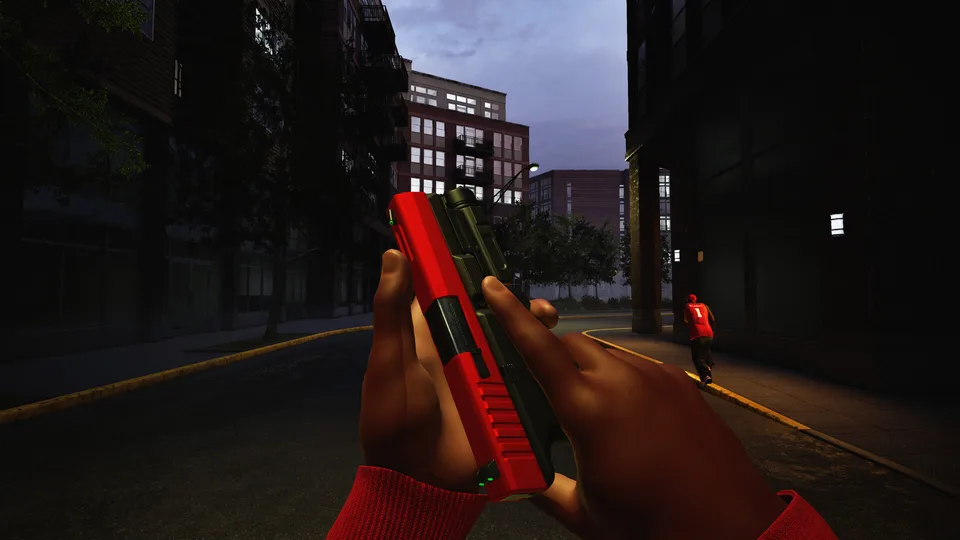
Hood Warfare 2 Tips: Best Settings, Performance & Gameplay Guide
Discover essential Hood Warfare 2 tips for optimal graphics settings, precise aim adjustments, and smart multiplayer strategies on Steam.
Published: Hood Warfare 2 Wiki Editorial Team
Table of Contents
Optimizing Your Controls for Better Accuracy
When jumping into Hood Warfare 2, fine-tuning your control scheme is one of the most effective ways to improve your performance in gunfights. Because the game is built using Unreal Engine 5, movement and camera movement can feel quite sensitive out of the box, similar to body-cam style shooters. Whether you use a mouse and keyboard or a controller, adjusting your sensitivity prevents you from over-flicking or missing crucial shots.
For mouse users, community reports suggest dropping your general mouse sensitivity down to between 22 and 25 to achieve better precision. Setting your zoom sensitivity to around 13 ensures that when you aim down sights (ADS), you maintain smooth control without swinging past your target. For keybindings, many players prefer mapping key actions like crouching and reloading directly to extra mouse buttons for faster reaction times during intense firefights.
Controller players should also make distinct adjustments to handle the Unreal Engine 5 physics smoothly. Community feedback recommends a general controller sensitivity between 19 and 22, paired with a reduced ADS sensitivity of 12 to 14. Additionally, you may want to disable toggle aims. Disabling toggle allows you to simply hold down the aim button and release it instantly, facilitating quicker snap-targeting when reacting to sudden threats around Chicago's streets.
Adjust Mouse Sensitivity: Set your base mouse sensitivity to 22–25 and zoom sensitivity to 13 for stable precision.
Configure Controller Settings: Keep stick sensitivity around 19–22 and lower ADS to 12–14 to prevent erratic camera movement.
Disable Toggle Aims: Turn off toggle aiming so you can quickly press, aim, and release during fast-paced encounters.
Map Extra Buttons: Assign high-frequency actions like crouching and reloading to auxiliary mouse buttons for streamlined inputs.
Maximizing Frame Rates and Visual Settings
Because Hood Warfare 2 relies on Unreal Engine 5, the graphical assets can be quite heavy on your hardware. If you are running high-end equipment—such as an RTX 4090 paired with a powerful processor—you can comfortably push most settings to high. However, players looking to squeeze every drop of performance out of mid-range setups need to balance visual fidelity with stable frame rates.
First, always match your in-game frame rate cap to your monitor's refresh rate. Set your resolution scale strictly to 100 to avoid unnecessary blurriness. When it comes to anti-aliasing, TSR (Temporal Super Resolution) is widely considered the best choice available in the game, outperforming standard TAA. To protect your frame rate, turn off heavy post-processing features like HDR and Vsync, and ensure motion blur is disabled, as is standard practice for competitive first-person shooters.
Match your game's frame rate limit directly to your monitor's refresh rate.
Keep resolution scale at 100 for a crisp image.
Select TSR for anti-aliasing to maintain visual clarity without excessive AI upscaling artifacts.
Turn off HDR, Vsync, and motion blur to relieve GPU tax and boost FPS.
Set view distance and foliage to ultra or high if your hardware permits, helping you spot enemies hiding near terrain or bushes.
If your graphics card struggles during intense 1080p or 1440p sessions, you can selectively lower specific settings without ruining your situational awareness. Reducing shadows, shading, and reflections to medium or low yields significant performance gains. Keeping shadows at a modest level still allows you to silhouette enemies lurking around building corners, ensuring you maintain a competitive edge.
Navigating Game Modes and Tactical Mechanics
Developed by Trapstar Games and available on Steam, Hood Warfare 2 offers an arcade-style multiplayer experience set within urban environments like suburbs and shopping malls. Beyond the traditional Turf War mode where rival factions fight for territory, the game features several distinct game modes with unique names:
GangBang: A classic team deathmatch mode focused on straightforward gunplay and eliminations.
Hit a Lick: A capture-the-flag style mode requiring coordinated team pushes and defensive cover.
Destroy the Block: A tactical bomb-defusal mode that tests map control and communication.
Chain Snatch: A kill-confirmed variant requiring players to secure dropped items.
Players can also utilize unique tactical mechanics during matches. For instance, calling in homies prompts your character to pull out an on-screen phone to coordinate a drive-by using an SUV. Similarly, you can utilize mechanics like snatching to reveal enemy positions across the map, functioning similarly to a classic UAV utility. Utilizing these tools effectively requires map awareness and coordination with your teammates.
Tip
To protect your audio cues, consider lowering the in-game music volume so you can clearly hear approaching footsteps, announcer queues, and vehicle sounds. If you prefer streaming your own playlists or communicating via external software like Discord, muting the in-game voice chat and music entirely helps maintain a clean auditory environment during matches.
Frequently Asked Questions
What platform is Hood Warfare 2 available on?
The game is currently available on PC via the Steam digital distribution platform.
Who developed Hood Warfare 2?
The game was independently developed by Trapstar Games as a sequel to their original 2023 release.
Which anti-aliasing setting should I use?
According to community testing, TSR provides the cleanest anti-aliasing option compared to standard TAA alternatives in this Unreal Engine 5 title.